AviHUD
Every page, gesture and setting of the AviHUD plugin, in the order you meet them.
← avihud.aero- Before you fly
- The phone panel
- Flights and routes
- Gestures on the glasses
- The route page
- The approach views
- The FLY page
- The AviWIND page
- The FREQ page
- The TRAFFIC page
- Checklists
- Settings
- The demo
- About and feedback
- If something looks wrong
- Limits
Before you fly
You need the Even Realities G2 glasses paired with the Even app on your phone, and the AviHUD plugin installed from the Even Hub. The first time it opens, the Even app asks for location access: allow it, always or while using the app. Everything on the glasses is computed from the phone's GPS.
Open AviHUD from the Even app. The glasses show a short advisory screen, then the route page. The phone shows the companion panel, which is where you choose what flies: a BRIEF flight or a route from the Routes page. Without either, the glasses show a message asking you to pick one, and you can run the demo instead.
Accounts, none of them required to try it:
- AviTracer BRIEF for your filed flights (avitracer.com).
- AviTracer for your company's fleet on the traffic page (a separate account from BRIEF).
- Imported routes and the demo need no account. AviWIND stations need none either.
The phone panel

From the top:
- Header: the plugin version, the i button for the About page, and the gear for Settings. Tap either again to come back.
- Eye button: hides or shows the display on the glasses, the same as a long press on the temple. Handy with a headset on.
- BRIEF, ROUTES and FLY: the three sources. BRIEF opens your AviTracer BRIEF flights, ROUTES the routes you imported or saved, FLY is a free flight without a route. The lit one is the source on the glasses.
- Active flight: callsign, rules, EOBT, the route, EET, fuel and endurance, and the flight plan and briefing status from BRIEF. A route of your own carries no plan data, so its card shows just the name, the total distance and the route. When the active route is one of your own (drawn on the map, imported, or an offline copy), tap the card for its Edit and Reverse options, the same two as on its Routes row; tap again to close them. Nothing on the card deactivates the route.
- Active waypoint: the waypoint the glasses are flying to, with arrows to step back or forward. The same as a swipe on the glasses.
- Information tiles: the active page on the glasses, and three tiles that both inform and act. AviWIND shows the nearest station and puts its wind on the glasses for ten seconds; FREQ shows the nearest airport and puts the frequencies page up for ten seconds; TRAFFIC shows how many aircraft are inside the ring and the nearest distance, and switches the traffic page on or off on the glasses. A tile that is lit is the page currently on the glasses; tap it again to end the view early.
- GPS: the current position, updated as you move. "waiting…" means the phone has not delivered a fix yet. Tap the line and the coordinates are copied to the clipboard, ready to paste into a message or another app.
Flights and routes
BRIEF flights
Tap BRIEF, sign in with your AviTracer BRIEF email and password. The page lists your flights for the next fourteen days. Tap a flight to put it on the glasses; the card turns green. Refresh reloads the list after you file something new. Until a route is chosen the glasses read: Select a route, sign in to your AviTracer BRIEF Account or just Fly. Sign out asks once before it forgets the account.
Save for offline. Under the active flight card a button keeps a copy of the BRIEF flight in Routes: waypoints, registration, fuel and EET. Its card shows SAVED with the time instead of the BRIEF status, and EOBT reads n/a, as on an imported file. On a day without internet, tap the copy on the ROUTES page, listed as departure → destination like every route, with any intermediate stop in between and the callsign below (the saved time is on the flight card), and it goes on the glasses like any imported route, no sign-in needed; the glasses header reads BRIEF(S) so you know a saved copy is flying. It is a snapshot: after a change in BRIEF, save again. Delete it from the ROUTES page when done.
A flight with a stop, say Athens to Skiathos and back through the same heliport, starts from whichever aerodrome you are closest to when you select it, so choosing the flight while parked at the stop starts the remaining leg, not the whole route.
Routes

Tap ROUTES. Routes come from three places: drawn on the map with Create route, imported with Add file from a planning app, or saved from a BRIEF flight with Save for offline. Every route in the list is titled departure → destination and works without any signal.
To import, tap Add file and pick a file exported from your planning app. If the file arrived by email, open the attachment and share it to the Even app, or save it to Files first and pick it from there. Supported files:
Each route shows its source, registration, waypoint count and total distance. Tap a route to put it on the glasses; it stays there until you select a BRIEF flight or delete it. The pencil on a row opens its three options. Edit opens the route on the map to change it (see below). Reverse turns the route around in place for the flight back: the same entry, ends swapped, the bottom arrow of the button green, with the planned fuel hidden since it was for the other direction; tap again to turn it back. Reversing the route that is on the glasses turns it around there too, with the next waypoint picked from where you are. Delete asks before deleting. SkyDemon files carry no waypoint names: on import, every point that sits on an airport, heliport, VOR, VFR reporting point or IFR fix in the plugin's data takes that name, so a route reads AFIDNES, KALAMO, SARAKINI instead of DEP, WPT 1, WPT 2; a point on nothing known keeps its number. ETAs on imported routes are live from your groundspeed, unless the file carries a departure time (ForeFlight and Garmin ETD), in which case plan ETAs show before you move.
Create and edit routes on the map
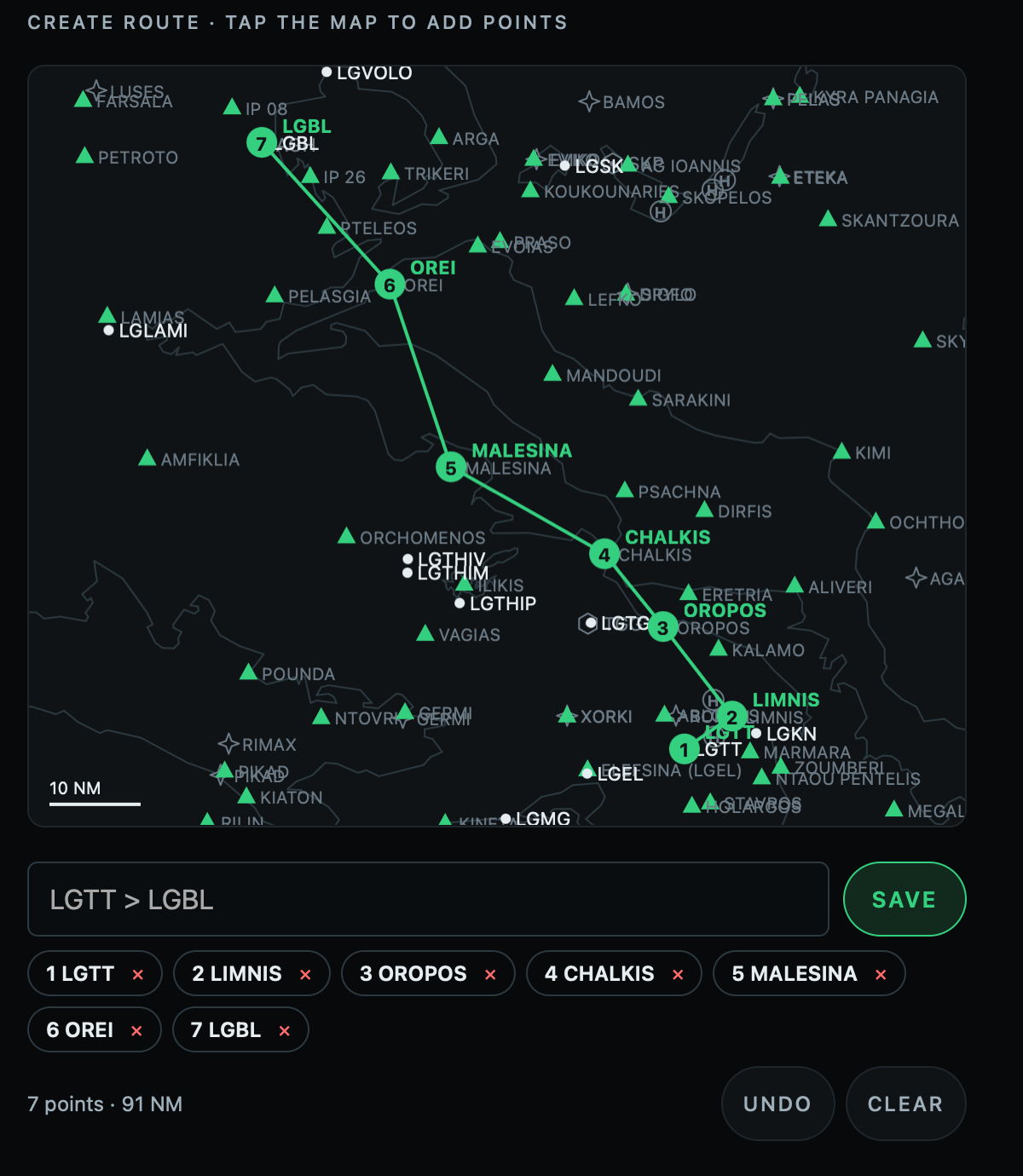
Create route on the ROUTES page opens a map centred on your position, drawn from the plugin's own data so it works with no signal: the coastline and lakes, airports as dots with their idents, heliports as the circled H, VORs as hexagons, the VFR reporting points as green triangles (filled when compulsory, hollow when on request) with their names as you zoom in, and the IFR fixes, the five-letter points of thirteen countries' AIPs, as four-point stars. Drag the map to pan and pinch to zoom; the scale bar at the bottom left reads 5, 10, 25 or 50 NM.
Tap a symbol to add it to the route by name, or tap open ground for a point of your own (WP1, WP2 …). The route draws in green with numbered points, and the chips under the map list them in order with the total distance. Tap a point again to remove it. Drag a point to move it: it takes the airport, fix or reporting point it lands on, else it becomes a point of your own. Pull a leg sideways and a new point comes out of it between its two ends, snapping to whatever you drop it on. Drag a chip left or right to change the order. Undo takes back the last change, whatever it was, step by step; Clear starts over, and Undo brings the route back. The name field scrolls up above the keyboard when you tap it. Name the route if you like, else it is titled by its ends, and tap Save: it goes to the top of the Routes list, ready to tap onto the glasses like any other route.
Edit, behind the pencil on any route row, opens that route on the same map, fitted to the view, whatever it came from: a map route, an imported file or a saved BRIEF copy. Move, add or remove points, reorder the chips, rename, and Save puts it back in the same place in the list. An edited route counts as a map route from then on, so the registration, fuel and EET of a saved BRIEF copy are dropped. If the route you edit is the one on the glasses, the change goes there at once and the next waypoint is picked from where you are, the same as a reversal.
Free flight
Tap FLY when there is no route to fly: the glasses switch to the FLY page, the picture around wherever you are with the nearest frequencies beside it. FLY is remembered between launches; choosing a BRIEF flight or a route ends it. Tapping FLY again ends the free flight with nothing on the glasses until you choose a flight or a route. With a route on the glasses, FLY asks first: Go Fly takes the route off, Keep route leaves it. The same question comes when a BRIEF flight is tapped while a route from the Routes page flies, or a route while a BRIEF flight flies: Switch or Keep route. Between two BRIEF flights, or two routes, the change is immediate.
Gestures on the glasses
Pages you tap to are glances: the AviWIND and FREQ pages return to the route on their own after twenty seconds. The TRAFFIC page is a watch page and stays until you tap on. A hidden display wakes itself when your next waypoint comes within 3 NM or an AviWIND station within 5 NM.
The route page

| Where | What it shows |
|---|---|
| Header | The route source and your registration, then your position from the nearest VOR as the fix a pilot reads off the panel: magnetic radial FROM and DME, as in BRIEF · SX-DEMO · ATV R036 12 DME. The UTC clock on the right. A flashing dot at the end means traffic inside the 6 NM ring. |
| Map | The whole route with its waypoints, your aircraft with its track line, airports as dots, heliports as an H, VORs as hexagons, and the coastline with the larger lakes dimmed behind it. Parked, or without a track, your aircraft is a small dot. The flown track closes onto your aircraft; the leg to the active waypoint is drawn dim. |
| List | One line per waypoint ahead: name, distance to go, ETE and ETA. The > marks the active waypoint. |
| Footer | Altitude, groundspeed, distance to the destination and its ETA. Today's sunset time on the right. On the ground it reads NO GS and shows the plan ETA to the destination. |
ETAs before departure come from the filed EOBT and the planned speed, marked "plan". Once you are moving, they go live from your actual groundspeed.
Sequencing is automatic: a waypoint is done when you pass within 1 NM of it, or when you pass it abeam within 6 NM. A swipe steps manually when you want to look at a later leg, or to skip a point you will not fly. The route itself is never changed by sequencing; the original leg lines stay on the map.
The approach views


Within 5 NM of your destination the map zooms to a 5 NM view, and inside 2 NM to a 2 NM view; the stated range is the height of the picture, the sides reach a little further. Runways appear in their true position and orientation with their numbers at the thresholds, a heliport as the circled H, and a private spot as a plain dot. The field is drawn dimmed so your aircraft, its track line and any traffic stand out. The zoom applies on the final leg and at an intermediate stop: an aerodrome of a through-route, a waypoint placed on a known field under another name, or the turnaround point of an out-and-back, where a private field shows as its dot with any nearby runway in true position. Flying past an en-route waypoint does not zoom. The coastline is drawn on the 5 NM view but not on the 2 NM view, where its resolution would mislead.
The FLY page

The FLY page replaces the route page when you tap FLY on the phone: a free flight without a route, for the local sortie, the sightseeing loop or the helicopter working an area. No registration is needed and no account.
| Where | What it shows |
|---|---|
| Header | FLY, then your position from the nearest VOR as radial FROM and DME, as on the route page. The UTC clock on the right, and the flashing dot when traffic is inside the 6 NM ring. |
| Map | A fixed 5 NM view centred on you, with a dashed ring at 5 NM around your position. Every runway in true position and numbered, heliports as the circled H, VORs as hexagons, the coastline and lakes dimmed behind, and traffic as diamonds. Your aircraft with its track line, or a small dot while parked. |
| Column | The nearest airport with distance and bearing, or HERE on the field, then its frequencies in tune order: ATIS, approach, tower in the air; ATIS, delivery, ground, tower on the ground. The next airport on one line with its first frequency. Then HELI: the two nearest heliports with distance and bearing. Everything refreshes as you move. |
| Footer | Altitude, groundspeed and track, and the nearest field with its distance. Sunset on the right. |
The AviWIND, FREQ and TRAFFIC pages stay in the tap cycle, and the wind card appears on its own as it does on a route. Traffic entering the ring shows on the map itself, with the header dot, rather than as a card. Choosing a BRIEF flight or a route from the ROUTES page ends the free flight and brings the route page back.
The AviWIND page

Within 5 NM of an AviWIND station the wind page appears on its own for six seconds, then hands the route back. Direction is the arrow on the compass rose with the degrees inside; the rows give speed with the gust when it is 10 kt or more above the mean, temperature and QNH. FOG, RAIN and STRIKE with the distance of the last lightning appear only when active. The header carries the station name, its distance and the age of the reading.
A reading older than five minutes is flagged STALE in the footer with "do not trust", and the header drops the age. From the phone, the AviWIND tile puts the nearest station up for ten seconds; with several stations in range it opens a list to choose from, and the list can also show any station at all when you are far from them. AviWIND stations are currently in Greece.
The FREQ page

The FREQ page lists every airport within 20 NM with live distances, nearest first, and the frequencies you will tune. The order follows use: on the ground it is ATIS, delivery, ground, tower; airborne it is ATIS, approach, tower. With a single airport nearby the page becomes a full card for that airport. En route over Greece with no airport near, the card carries the ATHINAI INFORMATION sectors and TMA instead. The data covers more than 2,200 European airports.
The page is in the tap cycle whenever an airport is within range. From the phone, the FREQ tile shows the nearest airport and puts the page up for ten seconds; tap the lit tile to end it.
The TRAFFIC page

Live Traffic is off until you switch it on in Settings; it is experimental and advisory. Once on, the plugin polls every five seconds for aircraft within 6 NM of you, on the ground too, and:
- The TRAFFIC page joins the tap cycle. The scope is track-up, like a TCAS display: your aircraft nose-up at the centre, the 6 NM ring with a dashed 3 NM ring inside, a small N marking north. Without a track, on the ground, it is north-up with a small dot at the centre.
- Each target is a diamond with a short stub along its track and its relative altitude in hundreds of feet above the diamond: +12 is 1,200 ft above you, -03 is 300 ft below, an arrow means climbing or descending at 300 ft/min or more.
- The list gives the clock position from your track (the true bearing when the track is unknown), distance, relative altitude and callsign, nearest first, six at most. The header counts every aircraft in the ring.
- An aircraft entering the ring, or appearing inside it, such as one starting up on the apron beside you, brings the page up on its own for six seconds and chirps on the phone, then hands the route back, waking a hidden display. That happens only from the route page, never during the approach views, where the diamonds are already on the map.
- The flashing dot after the registration in the header means traffic is inside the ring, whatever page you are on.
- On the 5 and 2 NM views the diamonds are drawn on the map in their true position.
The chirp comes from the phone, since the glasses have no speaker: with the phone paired to a Bluetooth headset it arrives in your ears with the intercom. Switch the sound rocker in Settings off and on once after installing, so the phone has heard a tap from you and lets the plugin play.
The page you reach by tapping stays until you tap on. From the phone, the TRAFFIC tile shows the count and the nearest distance; tapping it puts the page on the glasses or takes it off, and opens Settings when Live Traffic is off. Data older than twenty seconds is flagged STALE in the footer, and a lost phone network shows UNAVAILABLE.
Your company's fleet
Sign in with your AviTracer account in Settings and every aircraft with an AviTracer tracker joins the scope, transponder or not: by registration, drawn as a small helicopter or airplane instead of a diamond, with its altitude and groundspeed in the list, or GND while it is parked. ADS-B keeps covering everyone else, and an aircraft on both feeds is counted once. Your own aircraft is recognised and kept off the scope: by registration on the fleet feed, and on ADS-B by the transponder that follows you, learned within the first half mile of each flight and remembered per registration.
Sources: transponder traffic heard by community receivers (adsb.lol, ODbL) and the aircraft your AviTracer account tracks. Never everything that flies. Eyes out, see and avoid.
Checklists
Keep your own checklists on the glasses and run them hands light: each item is shown on the glasses and read aloud by the phone, you tap to check it off, and a timed item counts itself down. Switch Checklists on in Settings, write or paste your lists there (a template is provided to copy), then start the selected one from the button on the main page.

Writing a list, one item per line:
- An item is a challenge and response split by a dash, such as BAT MSTR - ON. Both are shown, challenge left and response right, and read aloud.
- A line starting with # is a section title, such as # ENGINE START. It shows as a bar and is spoken when its first item comes up.
- | note after an item adds a detail line, several allowed, shown under the item and read after it, for example AREA - CLEAR | call CLEAR before start.
- @30s or @2:00 at the end of a line makes a countdown, such as IDLE - STABILIZE @10s. The timer starts when you check the item and cannot be cut short.
- A # ABBREVIATIONS section at the end is a spoken dictionary, not steps: an item keeps its short form on the glasses but is read in full, so CB is shown and "circuit breaker" is spoken. Multi-word forms like BAT MSTR work.
Each saved list has a pencil to edit it and a bin to delete it (delete asks first). Running one, the glasses show a window of the list with the section title pinned at the top, the active item boxed bright and the rest dimmed, challenges left and responses right, and a countdown on the item itself. Tap checks the current item off and moves on; swipe back steps to the previous one. The header carries the checklist's name and the current section, and the progress count rides on the CHECK button on the phone. The list closes itself a few seconds after the last item, or a tap closes it at once.
Voice CHECK
Voice CHECK (experimental, off by default) lets you advance an item by saying "CHECK", hands free, while a checklist runs. The microphone listens only while a checklist runs, and the detection happens on the phone itself: no audio is stored or sent anywhere. It keeps listening with the app in the background, so you can read the glasses with the phone in a pocket, and it stops the moment you close the plugin. It works best worn, where a microphone sits close to your mouth, or with an aviation headset paired to the phone.
On its own it detects a short spoken word, so a radio call can advance an item too; swipe back if it does. To tighten it to you, use Teach the word CHECK in Settings: record yourself saying CHECK a few times and the plugin keeps a fingerprint of your voice, so from then on only your CHECK advances the item. That too stays on the phone and offline, and you can re-record or clear it at any time. Tap always checks an item off, whether or not voice is on. You can also choose which installed iPhone voice reads the items.
Settings
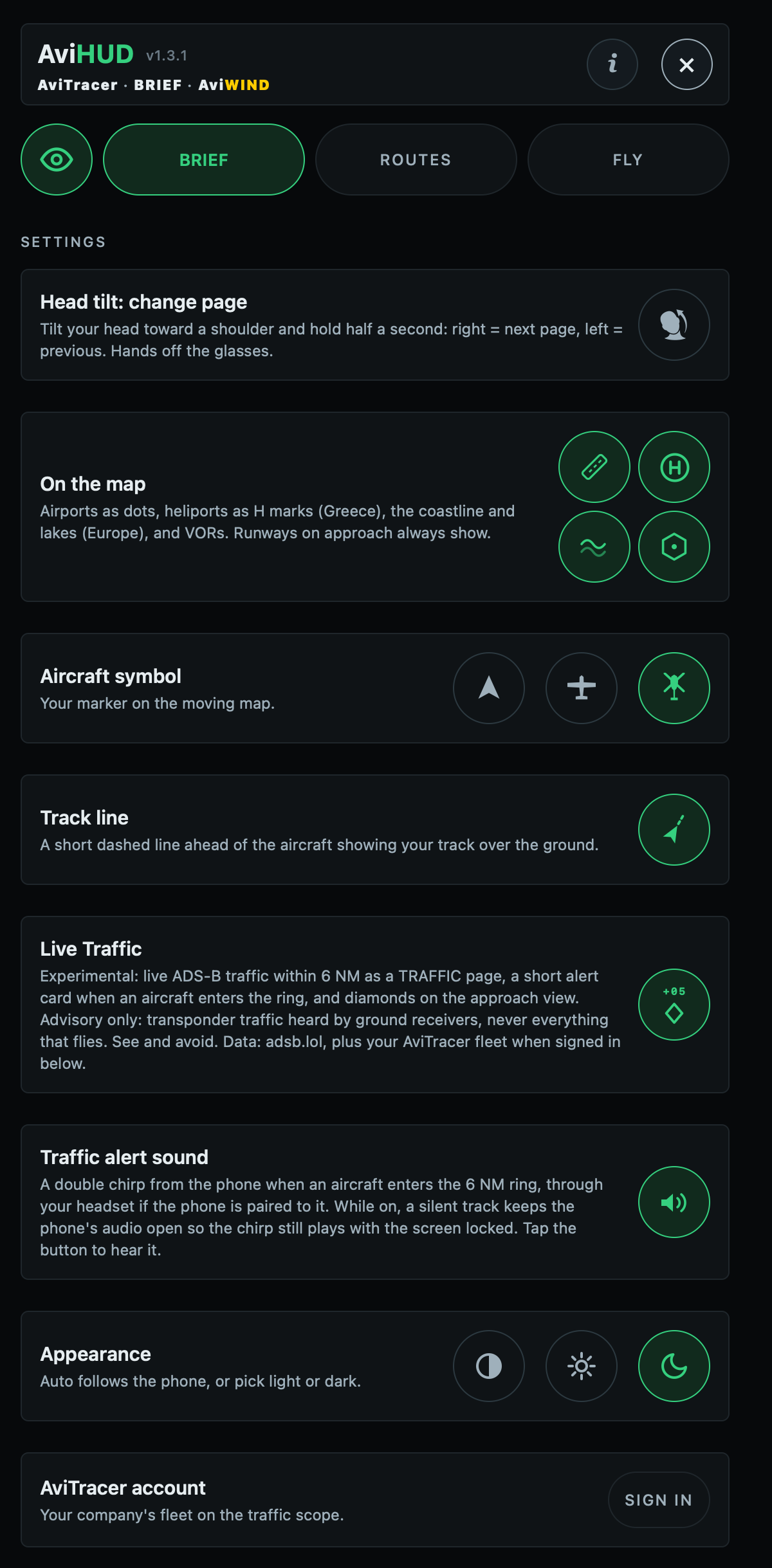
| Setting | What it does | Default |
|---|---|---|
| Head tilt | Change page by tilting your head toward a shoulder and holding half a second: right is next, left is previous. | off |
| On the map | Four layers on the route map: airports and airfields as dots, heliports as H marks, the coastline with the larger lakes (Europe), and the VORs as the chart's hexagon with the ident. The layers only change the map: the VOR fix in the header and on the FLY page stays. Runways on approach always show. | all on |
| Aircraft symbol | Your marker on the map and the traffic scope: arrow, airplane or helicopter. | arrow |
| Track line | A short dashed line ahead of the aircraft along your track over the ground. | on |
| Live Traffic | The TRAFFIC page, the ring-entry card, the header dot and the diamonds on the approach views. The button turns red while the glasses are not connected: the setting is on but the feed is paused. | off |
| Traffic alert sound | A double chirp from the phone when an aircraft enters the ring or appears inside it, through your headset if the phone is paired to it. Tap the button to hear it. While on, a silent track keeps the phone's audio open so the chirp can play with the screen locked; closing the plugin stops the track and all polling. | off |
| Appearance | The phone panel in light or dark colours, or Auto to follow the phone's own setting. The glasses are always green on black. | auto |
| AviTracer account | Sign in for your company's fleet on the traffic scope. Sign out asks once before it forgets the account. | signed out |
| Checklists | Write, edit and store your own checklists, and show the start button on the main page. See Checklists for the format. | off |
| Voice CHECK | While a checklist runs, the microphone listens and saying CHECK advances the item. Detection is on the phone; no audio is stored or sent. Teach the word CHECK to tighten it to your own voice, and pick the spoken voice from your installed iPhone voices. | off |
The demo
With no account, tap Try the demo on the main page. SX-DEMO flies Samos to Mykonos at 140 kt, picked up short of the island: within a minute or two the PANORAMYK wind card appears on its own, and as you turn onto base a demo aircraft rolls on runway 34 and brings up the TRAFFIC page, while another holds south of the field. Then base and final for 34, with the runway drawn on the 5 and 2 NM views, down to the landing, the taxi to the apron and the parking, all inside eight minutes; once you are parked, the holding aircraft comes in to land. The demo drives every page, so tap through them while it runs. Tap Exit demo to end it; your own symbol and traffic settings come back untouched.
About and feedback
The i button opens the About page: what each page does, the data sources and their credits, and the disclaimer. At its bottom, the Feedback tile's Share button opens the phone's share sheet with a message ready for email or chat. The message carries the plugin version, the phone and Even app details, the glasses, the active page, GPS and traffic state, so a report needs no typing beyond what you saw. The same details are copied to the clipboard, and they name the relay each of the wind and traffic feeds came through and its last error, so an OFFLINE on the glasses needs only a Share to be understood. The report also lists the last things the Even app did to the page, such as an exit or a switch to the background, kept across a reopen.
If something looks wrong
| You see | What it means and what to do |
|---|---|
| NO GPS | The phone has not delivered a position for thirty seconds. Check that the Even app has location access and is not restricted in the background. Parked with a poor view of the sky it can take a minute. |
| NO POSITION | The traffic page waiting for the same fix. Nothing to do beyond the above. |
| plan DEST · NO GS | Normal on the ground: ETAs come from the plan until you move at 5 kt or more. |
| STALE on the wind page | The station's last reading is over five minutes old, or the fetch failed. Do not trust it; it refreshes on its own when the data returns. |
| TRAFFIC UNAVAILABLE | Neither adsb.lol through avihud.aero nor AviTracer answered. Usually the phone's network. The page recovers on the next successful poll. |
| Blank glasses after the exit dialog | A known Even app issue when you answer No to the exit dialog: the images stop updating. Close and reopen the plugin. |
| A red notice, No glasses paired | The Even app reports no glasses at all. Pair the G2 in the Even app; the panel continues on its own once they are connected. The About and Settings buttons still work meanwhile. |
| An amber notice, Glasses not connected | The glasses are paired but off, out of range, or unpaired in a way the Even app still remembers. The panel stays usable, but wind and traffic are not polled until the Even app reports the G2 connected; the Live Traffic button in Settings and the AviTracer account tile read paused meanwhile. Turn the glasses on, or pair or reconnect them in the Even app. |
| Blank glasses after a Bluetooth drop | When the glasses lose the phone and come back, the plugin redraws the page on its own within a second and re-enables head gestures. If they stay blank, hide and show the display with a long press, then restart the plugin from the Even app. |
| The wrong flight | A route from the ROUTES page on the glasses takes precedence over the BRIEF flight, and FLY over both. Tap the flight again on the AviTracer BRIEF page, or delete the route, to take it off; tap FLY again to leave the free flight. FLY asks before taking a route off the glasses. |
| Fleet aircraft missing | Its tracker has not reported for five minutes, it is more than 5,000 ft above or below you, or it is more than 6 NM away. |
| A checklist advances on any word | Voice CHECK with no taught word fires on any short sound. Use Teach the word CHECK in Settings so only your CHECK counts, or tap and swipe instead. Cabin noise is a real limit, and the glasses microphone sits outside a headset. |
Limits
- AviHUD is an advisory aid only, not a certified navigation source. The pilot in command remains solely responsible for the safe conduct of the flight.
- Traffic is what community receivers hear and what your account tracks. Aircraft without a transponder or a tracker, and aircraft beyond receiver coverage, are not shown.
- Positions and altitudes are the phone's GPS. Altitude is geometric, not pressure altitude.
- AviWIND stations are currently available only in Greece. Heliport marks cover Greece, Cyprus, Italy, Germany, France, Spain, Portugal and the UK; airports and frequencies cover Europe, Cyprus included.
- Runway drawings come from the frequencies dataset; airfields without runway data show as a dot on approach. VOR radials use each station's published slaved variation, as the chart does.
- The coastline and the larger European lakes are Natural Earth data; Greek lakes and reservoirs of 2 km² and more come from OpenStreetMap. Small ponds and islets are not drawn.
- VFR reporting points on the Create-route map are openAIP data (CC BY-NC 4.0) across Europe, with the Greek set from open flightmaps. They appear from the 25 NM scale, their names from about 10 NM. The IFR fixes appear from the 50 NM scale with their names from 25 NM, the ENR 4.4 five-letter points of thirteen countries' official AIPs: Greece, the UK (NATS), France (SIA), Spain (ENAIRE), Portugal (NAV), Germany (the DFS AIP data set), Bulgaria, Romania, North Macedonia, Serbia and Montenegro, Albania and Cyprus.
- Frequency labels are the standard short forms: TWR, APP, GND, DEL, ATIS, AFIS, RDO, INFO. A source entry written out in full is shortened to fit.